Notearama Release Notes
Published
Beta Release Notes 9/21/26
Getting Started as a Publisher
Go to the Getting Started notebook.
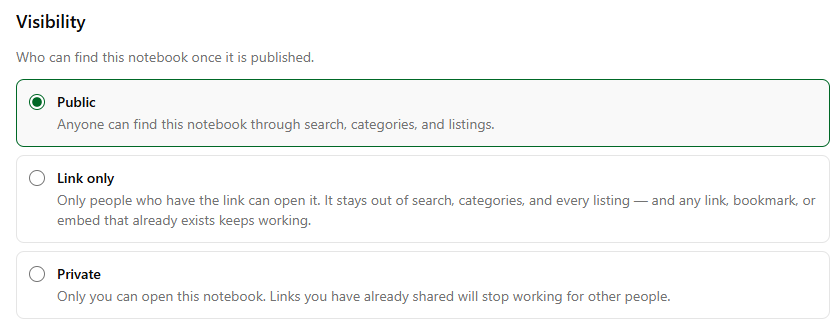
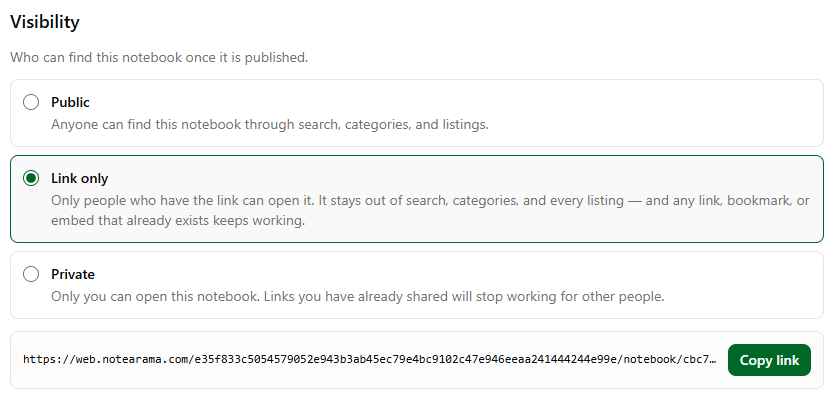
Publish Controls
Publishers can control the visibility of their notebooks in their Profile My Notebooks page after opening a notebook:
Markdown file imports
Notebook assembly from a group of Markdown files. Combine a related set of Markdown files into a ZIP file and upload them from your My Submissions page. They will be grouped into a single Notearama notebook for publication and sharing.
AI notebook scanning
Notebooks submitted for publication are scanned by Notearama PublishReady to check for grammar and writing quality, formatting, font, and style consistency, and terms of use compliance. Feedback is presented, allowing the submitter to review and override, or make changes and resubmit the notebook.
Embed notebooks
Publishers can copy a code snippet for a notebook and paste it into a website or blog. This results in the complete notebook appearing inside a frame of your website or blog.
Note sorting
Notes are listed in the same order that they were in when imported from Evernote or OneNote, or a custom order specified by the publisher. You can change the sort order for your view using the Sort by: dropdown at the top of the note list. This is only for your page view and does not get saved.
Evernote notebook links
The publisher may have chosen to use links to notes within a notebook, or to notes in other notebooks published on Notearama. External links are also fully supported.
For publishers: Evernote .enex format export files do not support internal links, while the direct access (via the Evernote API) option does. If links are important, you must use the Access Notebooks button rather than Upload Notebook in the Account/My Submissions page.
Saving and printing
A complete notebook can be printed or saved as a PDF using the Print button at the top of the note list. There is also a Print button that can be applied to individual notes.
Sharing notebooks
The Share button at the top of the notebook view page generates a link that can be used to open the notebook, for example from a web page, email, or blog. No sign-in is required unless the visitor also wants to browse and search other notebooks.
Importing Evernote notebooks
There are two ways to bring your Evernote notebooks into Notearama:
- Notebooks can be uploaded after you export from the Mac or Windows Evernote client apps. Use the Upload .enex button in the Account/My Submissions page.
- Notebooks can be directly imported from Evernote using your Evernote access credentials. Use the Import from Evernote button in the Account/My Submissions page. Since Evernote throttles this type of access, if your notebook has more than about 100 notes, the import will be paused and automatically restarted after a period of time. The status of any such pending imports is shown in the Account/My Submissions page, under Recent Imports.
Internal links
Note that for links to notes outside the currently open notebook, the target notebook must also be in Notearama.
Embedded PDFs
Unlike Evernote, which present a preview of any PDF content in a note, Notearama does not yet support that, so the PDF must be downloaded using the Print button at the top of the note list, or in each note.