From Getting Started with Notearama (Publisher) by David Nagy · Notearama Help
4. Publish Notebooks
Published
Approval Status
- You will receive an email with the status of your submission.
- Go to the Profile/My Notebooks page and verify that it was approved.
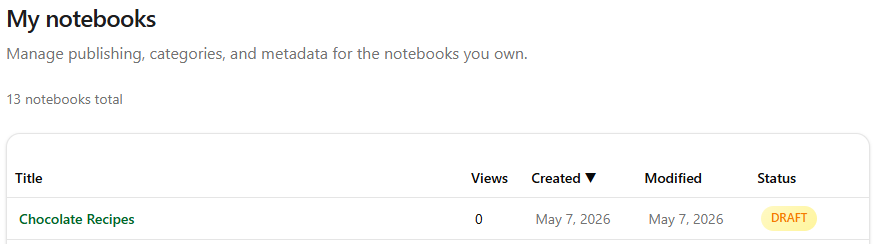
- Until you publish, it will appear as a DRAFT as in the screenshot below:
Preview
- Open the notebook and click the View notes button.
- Preview before publishing. If there are issues with a, b, or c, return to your PKM app (Evernote or OneNote), make adjustments, delete the notebook from Notearama, and transfer/upload the new version to Notearama and repeat the Importing Content steps again.
- Formatting correct
- Images display
- Links work
- Notes ordered properly (if not, reorder them in Notearama)
Publish
- Open the notebook in the My Notebooks page and check the Published box.
- Your notebook will now be live on Notearama!