From Getting Started with Notearama (Publisher) by David Nagy · Notearama Help
2. Import Notebooks
Published
Go to Profile/My submissions under your Profile

Import from Evernote
Supported formats:
- Go to the My submissions page under your Profile (top right).
- To import directly from your Evernote account:
- Choose the Import from Evernote button.
- If you are not already connected to your Evernote account, sign in.
- After you are signed in, a list of your notebooks will be displayed.
- Choose the notebook(s) that you want to bring into Notearama and click Submit.
- To upload an Evernote .enex format file from Evernote:
- Export the file from the Evernote Mac or Windows app to your computer.
- On Windows, right-click the notebook and choose Export notebook... Choose the ENEX format, then click Export to save it to your Windows PC.
- On Mac, click the three-dot menu next to the desired notebook, and select "Export notebook". Choose the ENEX format, then click Export to save it to your Mac.
- Click the Notearama Upload .enex button.
- Choose the file from your directory and click the Upload button.
- Your import/upload status will first appear on your Submissions page as Pending Review and Processing. Processing is a step that scans the notebook for grammar and writing quality, formatting and font consistency, and compliance with our Terms of Use and Publisher Agreement.
- After the import is complete, the notebook will appear in your Recent Imports list as Pending Review.
- Once your notebook is approved, you can Publish it. See this note for guidance.
- Use the Sort notes dropdown list and choose Custom (drag to reorder).
- A window will open that allows you to drag and drop the notes to reorder them.
- Click the Save Order button. Now, when anyone opens the notebook it will be the default order, which they can change but only for their session.
- For large notebooks, generally more than 100 notes, transfer into Notearama may be throttled by Evernote's rate limits. In this case the import will be paused and resumed automatically by Notearama in the specified time. Under Recent imports on your My Submissions page, you'll see something like this:
- Go to the My submissions page under your Profile (top right)
- To import directly from your OneNote account:
- Choose the Import from OneNote button.
- If you are not already connected to your OneNote account, sign in.
- After you are signed in to your OneNote account, a list of your notebooks will be displayed.
- Choose the notebook(s) that you want to bring into Notearama and click Submit.
- After the transfer is complete, the notebook will appear in your Recent Imports list as Pending Review.
- Once an administrator approves your notebook, you can open it an check the Publish box to publish it.
- If you want to change the order of the notes, go to My Notebooks, open the notebook, and click the View Notes button.
- Use the Sort notes dropdown list and choose Custom (drag to reorder).
- A window will open that allows you to drag and drop the notes to reorder them.
- Click the Save Order button. Now when anyone opens the notebook it will be the default order, which they can change but only for their session.
- Sections → notebook folders
- Pages → notes
- Subpages → nested notes
- Ink annotations flattened
- Some tables simplified
Notearama import steps:
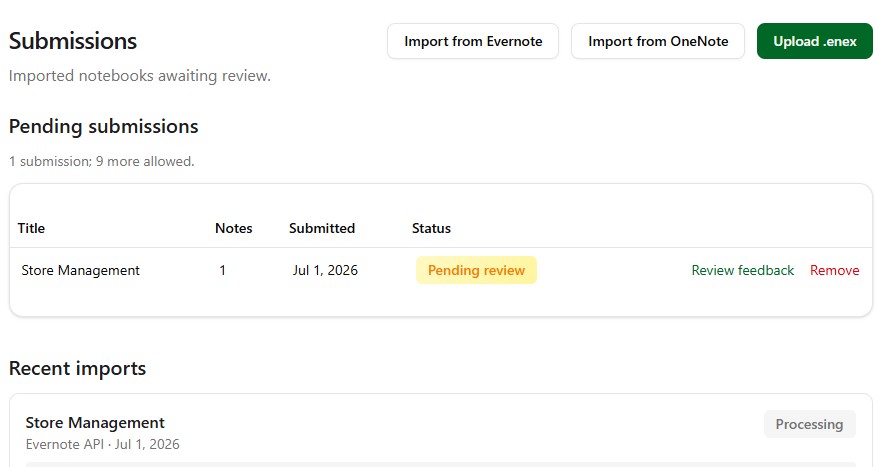
If issues are found click Review feedback. They will be assigned one of three levels: Error, Warning, or Info. Here is a sample report:
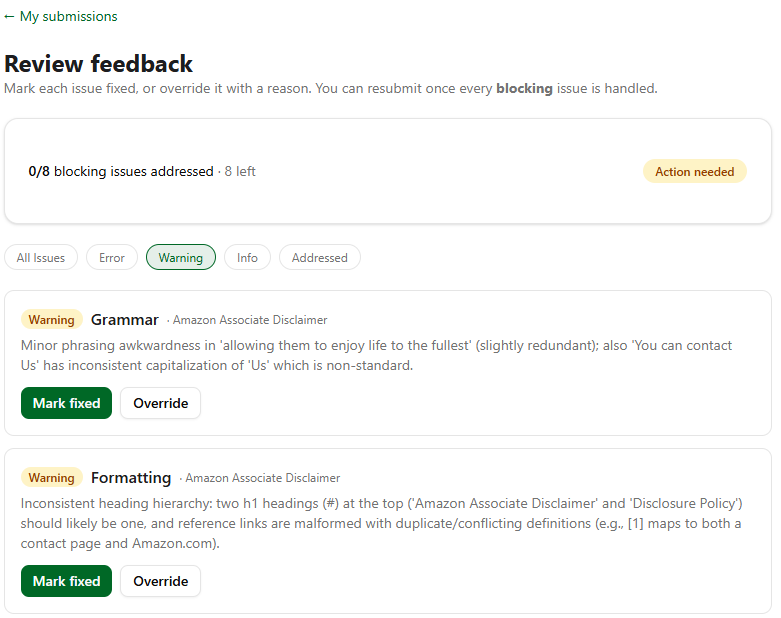
You can return to the notebook and make changes, re-import, and mark as fixed, or simply Override any of them.
If you want to change the order of the notes, go to My Notebooks, open the notebook, and click the View Notes button.
Known limitations:
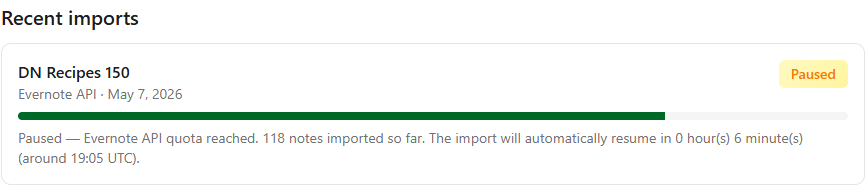
After about 6 minutes in this case, the transfer resumed and finished:

You will receive an email with the approval status, then go to Publishing
Import from OneNote
Supported formats:
Notearama import steps:
Mapping:
Known limitations: